Saturday, 14 November 2015

GAME JOURNALISM


Day 5 - Wrap-Up


You played the game. You have tried different strategies. You've won - you've lost.

Play once more.

Try something different.  Try something Bold - aggressive - strategic or perturbedly cardinal.
 
This is your final posting
 
Take some unique screen shots and explain how they affected the game.
 
Finally, your readers want your OPINION and they want the reasons for these opinions.
They do not want a knee jerk (unthinking) response.
They would like to know why you feel the way you do.



Day 4 - Plan

BEFORE you begin
write your plan for today. 
 
Reminisce about the issues you
 had to face last time
 then PREPLAN today's activity. 


Start

TAKE NOTES
 
then ...Blog today's gameplay
           
always for your readers


Day 3 -Review(1)
 
Start your own colony.
  • Make notes of the items you choose, the order you place them along with size and quantity.
  • Play  - but make notes of choices especially when you choose to be aggressive versus conservative.
  • for example - when choosing plants to grow - What is the reason for choosing 1 type over another?
  • Other than just survival - what is your goal
  1. milestones?
  2. a telescope? (in order to build a meteor destroying laser)
Now begin to write your opinion of the game and gameplay. Write about your choices and their consequences. Offer ideas to your readers and make predictions should you choose differently. Use screenshots.
 

Day 2 - Preview


Load the game and do the tutorial.

  • Explain how to set up a colony.
  • What should you do first and what choices do you have. Add screen shots.
 
Remember the walk-thru?
 
  • How was this tutorial different from the walk-thru?
  • What would you do differently?
  • What went wrong?
  • Offer tips and tricks.
  • Show how the help works and what's in each of the menus.
 
Talk to your readers and guide them through the startup process.


Day 1 - first impression
 
 
PlanetBase - What is this game?

  • go find out and write a report revealing report about it. Title: My first impression of Planet Base
  • Go to their website (see link below) for ideas and images.
  • go to YouTube for ideas and images
  • include in you post links to references.
  • screenshots are mandatory
  • describe each screenshot
  • add blog address to screenshot


Watch the Trailer: https://youtu.be/NvJr0SN83Zk
Write about the game.  Incorporate these questions in your answers and add screen shots.
What is this game about?
What do you do in the game?
What is the goal of the game?

Watch the Walk-thru video:    https://www.youtube.com/watch?v=IwK86aipHLk
Write about what happens in the video.
Explain what the specific goals are in the game and how to use them.
Explain how the controls work and what to pay attention to.

 
Add screen shots.
----------------------------
information about game:


Space Colony Survival Strategy!

Watch the video before you start the tutorial – or you may kill your colonists

http://planetbase.madrugaworks.com/media/


PlanetBase is a strategy game where you guide a group of space settlers trying to establish an outpost on a remote planet.
In the game you play the role of the base architect and manager, telling your colonists where to build the structures they will need to survive. You will have to ensure that they have a constant supply of oxygen, food and water to stay alive.
You will get them to collect energy, extract water, mine metal, grow food, manufacture bots, and build a fully self-sufficient base.
 Even if the game is not intended to be a simulator, all the mechanics are plausible, and based on what the expected challenges of establishing a colony in an new planet would be.


A little long but gives good ideas and a lot of poor choices:

People die of starvation!


Let's Try: Planetbase - Part 1 [Space Colony Survival Strategy!]


Let's Try: Planetbase - Part 2 [Space Colony Survival Strategy!]


Information about Game Journalism:
Your Job.
GAME JOURNALISM


reveal/preview/review
FROM THE INTERNET:  The writer responds to personal experiences presented to them by the game world. The story is not necessarily indicative of the experience any other player will have with the game.

You have been given this new game and told to write a series of posts about it.

The DAY 1 post with the 'reveal'. You write a first impression firstly based on the trailer then another on the walk-thru video. A screenshot is necessary.
The DAY 2 post will be the 'preview'. You will play through the tutorial and write about your experience. Take screenshots to supplement your writing. Afterwards you will also write about the features of the game based on the website.

The DAY 3 post and each day afterwards constitute the 'review'.  You play the game. Here you describe how you played the game and how to play the game with screenshots. You give insight in the form of tips and tricks you have discovered. These, in particular, should be accompanied by screenshots.


The more comprehensive the blog post the better the mark.


Monday, 9 November 2015

Remembrance Day


Microsoft Publisher Assignment
A Remembrance Day Card


  • Using Publisher create a ¼ sheet side-fold card
  • (if you cannot find it on your PC search for: MSPUB)
  • Publisher 2010 use new greeting card
  • Publisher 2013 use new BUILT-IN - greeting card

You may use an existing template but delete the contents.


WHAT TO DO:

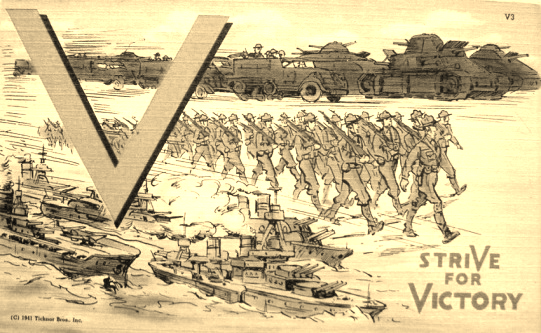
Front – Postcard cover -make it Canadian – and  everything SEPIA – add your BLOG URL

·         Create a COLLAGE of -at least- 10 images to represent memorable aspects of war

·         Copy images from the internet to Photoshop for SEPIA alteration then to publisher.

examples:


HOW_TO_SEPIA 
A sepia tone is a reddish brown monochrome tint. 

  1. Open the image in Photoshop.
  2. If the image is in color, go to Image > Adjust > Desaturate and skip to step 4.
  3. If the image is in grayscale go to Image > Mode > RGB Color.
  4. Go to Channel mixer
  5. Adjust your red and greens
  6. Click OK – COPY AND PASTE INTO PUBLISHER


Inside 2 pages

a CANADIAN Remembrance Day message – not SEPIA


Back


a postcard message


  • use this blank


image ideas: stamp, patch, write a message


  • Make everything SEPIA - use Photoshop
  • use the burn tool to add darker patches to the edges o the card


Write a message home from the war-on the left side
Add an address, (from your unit)- on the right side


add stamps and patches on both sides 


Finally-POST a link to a PDF – only


DO NOT POST A PUBLISHER DOCUMENT

Thursday, 22 October 2015

Car Builder - a 4 day project

Car Builder (1982 Simulation Game)


In order to run Car Builder 

you will require: DOSBox for Google chrome

Search for it and load it


INSTRUCTIONS TO LOAD CAR BULDER

Launch the Chrome app

Click the ?in the bottom right corner.

Choose to: Delete C:\ drive contents

Choose to: Import local directory to C:\ drive

Find Acs-Hand-Out CarBuild

Close down then Restart APP

Type: cd carbuild

Type: car
Grading Rules:
All cars must have a body.
Point System     C-B-A    (BONUS: A+ on the fastest cars - if you are the only person)
NOTE C- B- A-    if you omit your blog URL
Your points may change with the latest results. Be prepared to adjust your car.


FOUR DAY project
 
 
  • Build your car
  • Test your car
  • Add your name as a DECAL
  • Screenshot, resize then add URL
  • POST

 
DAY 1:
100 mph car (2/4/6 seats)
Post: 3 cars
DAY 2:
Slowest car
  2 seats 53mph
4 seats 45mph
6 seats 45mph
Post: 3 cars
A: 100 mph car 2/4/6 seats
B:   +- 1 mph
C:   +- 2 mph
-All cars must have a body-
A: slowest car  2/4/6 seats
B:   +- 1 of slowest car
C:   +- 2 of slowest car
DAY 3:
Fastest Minivan ( 6 seats) 160mph
Sedan ( 4 seats ) 177mph
Post: 2 cars
DAY 4:
Fastest Car ( 2 seats)
192mph
Post : 1 car
A: fastest 6/4 seats car
B:   - 10 mph of fastest car
C:   + 20 mph of fastest car
A: Fastest 2 seat car
B:  - 10 of fastest car
C:  - 20 of fastest car

Sunday, 27 September 2015

Flash - Rotoscoping

Flash
-POST 1- Title: The City

First Learn Flash. Flash CS4 tutorial covers creating graphics, working with layers, and adding motion, sound, and text to your Flash CS4 movie.
POST your flash movie – Instead of adding Text: Ghost Town or My First Movie put in your Blog address.

Post the flash movie

POSTING THIS MOVIE
Upload the SWF file to Dropbox
Copy the share link
Go to the HTML section of your post
copy the following code then replace the SCR="" with your link

replace the "www" in your link with "dl"
also remove the s from https://
also delete everything after the .swf                                 ---(Props to Rhea)

<embed src="http://dl.dropbox.com/.right/here.swf" quality="high" allowscriptaccess="always" type="application/x-shockwave-flash" pluginspage="http://www.macromedia.com/go/getflashplayer" align="middle" height="300" width="300"></embed>

Use this procedure for all the following rotoscoped images and movies.
 
-POST 2-
Rotoscoping


Cartoonize your Car project then Animal and finally tree.

 
Place your Car on layer 1. adjust the DOCUMENT size to match the image size.
Use other layers to Rotoscope your car.
This example begins like a still image

Crazy Rotoscoping


POST your a) car, b)animal and c)tree as an animated gif.
Title: Roto Car
Title: Roto Animal
Title: Roto Tree


-POST 3-
Get several  5 second videos. 


observe the following videos:

importing a video into flash
File: Import: Import video
Browse to: Hand-out\IT\IT9\RotoScope
 
select: Embed FLV in SWF and play in timeline
 
 
choose: Next
Uncheck: Include Video


1. New layer: BG:draw back ground
2. New layer: ITEM: draw moving item in frame above where it occurs in the movie.


Create a 3 different 5 second rotoscoping videos. POST

Title: Roto Video 1
Title: Roto Video 2
Title: Roto Video 3